Claude Code Remote Control: Your Terminal Session, Anywhere
Start a Claude Code session in your terminal and pick it up from your phone or browser. Everything stays local.
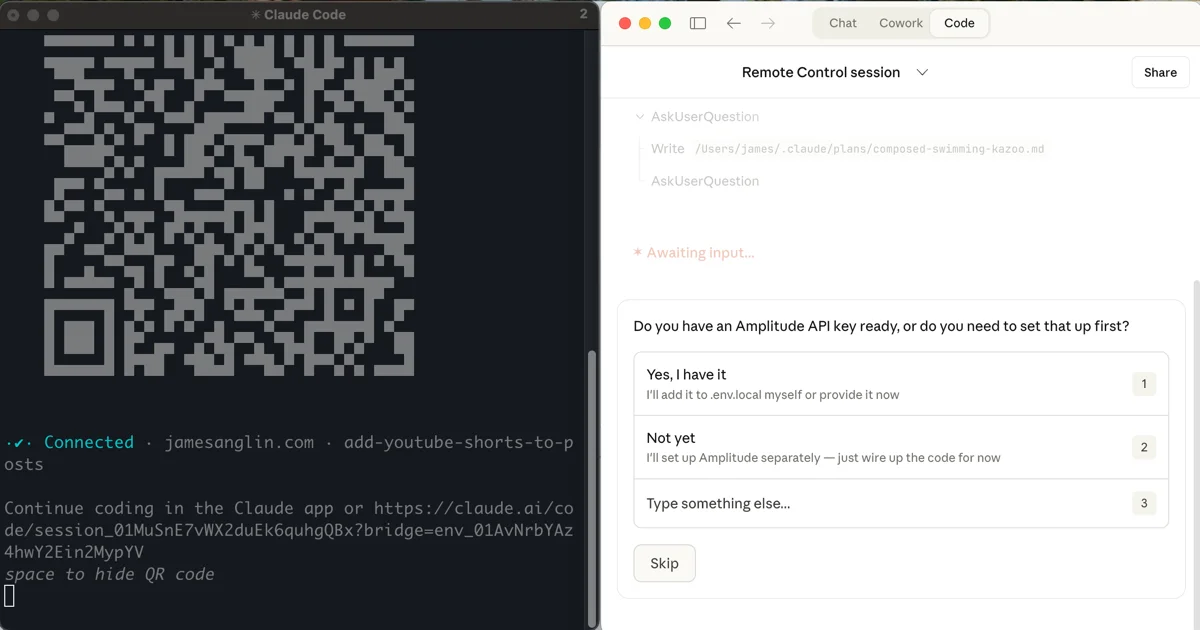
You're three hours into a refactor. Claude is halfway through migrating your API routes. You need to step away. Dinner, a walk, whatever. The session is running, but your laptop is staying at the desk.
Normally this means you're done until you sit back down. Sure, you could SSH in from your phone, but typing prompts on a tiny keyboard through a terminal emulator isn't exactly seamless.
Remote Control changes this. It connects your running Claude Code session to claude.ai and the Claude mobile app. Start a session on your machine, pick it up from your phone. The session never leaves your computer. Your filesystem, MCP servers, env vars, project config all stay local. The web and mobile interfaces are just a window into what's already running.
The Command
From your terminal:
claude remote-controlThis starts a session, prints a URL, and gives you a QR code you can scan with your phone. Press spacebar to toggle the QR code on and off.
Already in a session and want to make it remote? Use the slash command:
/remote-controlOr the shorthand:
/rcThere's a CLI shorthand too:
claude rcOnce connected, you can send messages from your terminal, browser, or phone. The conversation syncs across all of them.
What Stays Local
This is not the same as "Claude Code on the web," where sessions run on Anthropic's cloud VMs. With Remote Control, your local machine does all the work. Claude Code makes outbound HTTPS requests to Anthropic's servers, which route messages between your devices, but it never opens inbound ports on your machine.
That means your full local environment is available: MCP servers, custom tools, .env files, project-specific CLAUDE.md instructions. If you've configured your setup with hooks, aliases, and local tooling, Remote Control carries all of it. The cloud version doesn't.
Always On
If you want every session to be remotely accessible by default, run /config inside Claude Code and enable "Enable Remote Control for all sessions." No more remembering the flag.
My Workflow
I'm combining this with the worktree setup and plan-mode-then-YOLO alias from previous posts. Spin up two or three worktree sessions with remote control enabled, review the plans at my desk, then Shift+Tab them into bypass mode and let them run. If I step away, I can check in from my phone. See what each agent is doing, approve a plan, nudge one in a different direction.
It turns "wait at my desk" into "go do something else and check in when I want."
Caveats
A few things to know:
- It's a research preview. Expect rough edges.
- Pro and Max only for now. Not available on Team or Enterprise plans yet, and no API key support.
- Your terminal must stay open. Closing it ends the session. Your machine needs to stay awake and connected.
- If your machine loses internet for more than ~10 minutes, the session drops.
- You can only attach one remote session per Claude Code process.
For the full details, check out the official Remote Control documentation.
Happy clauding.
Stay in the loop
Get new posts delivered to your inbox. No spam, unsubscribe anytime.